Origin is a digital platform for purchasing and playing video games. It is developed by Electronic Arts. The software client of the platform is available for personal computers and mobile platforms. The origin client is self-updating software that allows users to download games, content booster packs, etc. Recently there was a bug reported by many gamers that their Origin not loading or they are getting the “Origin Won’t Open” Error.
Let us find out why this happens, and how you can fix this issue!

Contents
- 1 What Causes “Origin Won’t Open” Error?
- 2 How To Fix The Origin Not Loading Issue?
- 2.1 Method 1: Delete The Origin Cache Files
- 2.2 Method 2: Run The Compatibility Troubleshooter
- 2.3 Method 3: Clear The DNS Cache
- 2.4 Method 4: Delete Temporary Files Of The Origin
- 2.5 Method 5: Let The Origin Client Update
- 2.6 Method 6: Perform A Clean Boot
- 2.7 Method 7: Reinstall Origin Client
- 2.8 Method 8: Add Origin As An Exclusion
- 2.9 Method 9: Disable All Origin In-Game Overlays
- 2.10 Method 10: Check For Windows Updates
- 2.11 Final Verdict
What Causes “Origin Won’t Open” Error?
The main reasons behind this error are-
- Corrupted Cache files
- Problems with core origin files
- Problems with origin updater
- Distorted temporary files
- Compatibility issues
How To Fix The Origin Not Loading Issue?
Don’t let the error annoy you again and again. We are here with some of the best and easy fixes for this issue. Try these fixes to resolve the issue-
Method 1: Delete The Origin Cache Files
Origin creates files and stores data in them to load faster. Over time these files get corrupted and deleting these files might resolve this issue. To delete the cache files, follow the steps mentioned below-
- First close the Origin window, if it is running
- Then press Windows key and R to open the Run dialog box
- Type %ProgramData% and press Enter
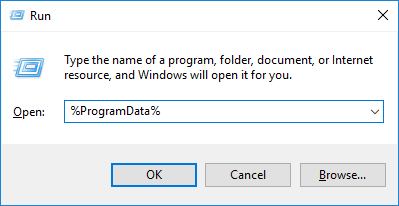
- In the Program Data open the Origin folder
- In the origin folder, delete all the files except LocalContent folder
Now try to open Origin again and see if the error is resolved
Method 2: Run The Compatibility Troubleshooter
Running the compatibility troubleshooter could fix the error. To do this, follow these steps-
- Navigate to Origin shortcut from the desktop
- Right-click on it and select Properties
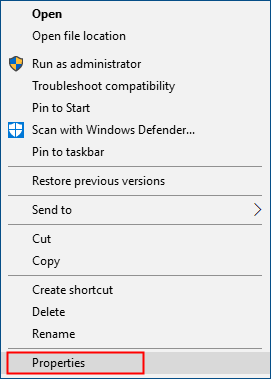
- Go to the Compatibility tab and click on Run compatibility troubleshooter
- If it shows any compatibility error, do the following steps-
- Click on the checkbox for “Run this program in compatibility mode for” and select your operating system

- Disable the option “Disable Fullscreen Optimization“
- Also, click on the checkbox for “Run this program as an administrator“
- Now click Apply and Ok to save the changes
Relaunch the application and check if the issue is resolved
Method 3: Clear The DNS Cache
Clearing your computer”s DNS cache could fix the “Origin not loading” issue. To clear the DNS cache to follow these steps-
- Press Windows key and R to open the Run dialog box
- Type ipconfig/flushdns and then press Enter
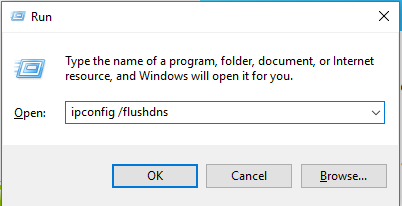
- A command box will open for a second which shows that the DNS cache has been cleared
Launch the origin app and see if the issue is fixed.
Method 4: Delete Temporary Files Of The Origin
Some temporary files are saved in the AppData folder. It might be possible that there are some problematic files in that folder. Deleting the temporary files could fix this issue. To do this, follow the steps mentioned below-
- Press Windows key and R to open the Run dialog box
- Type %AppData% in the Run dialog box and press Enter
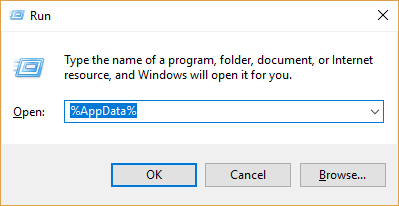
- Locate the roaming folder in the Appdata directory and open it
- In the roaming folder, navigate to the Origin folder. Right-click on it and select Delete option
- Go back to the AppData folder and delete the origin folder
Method 5: Let The Origin Client Update
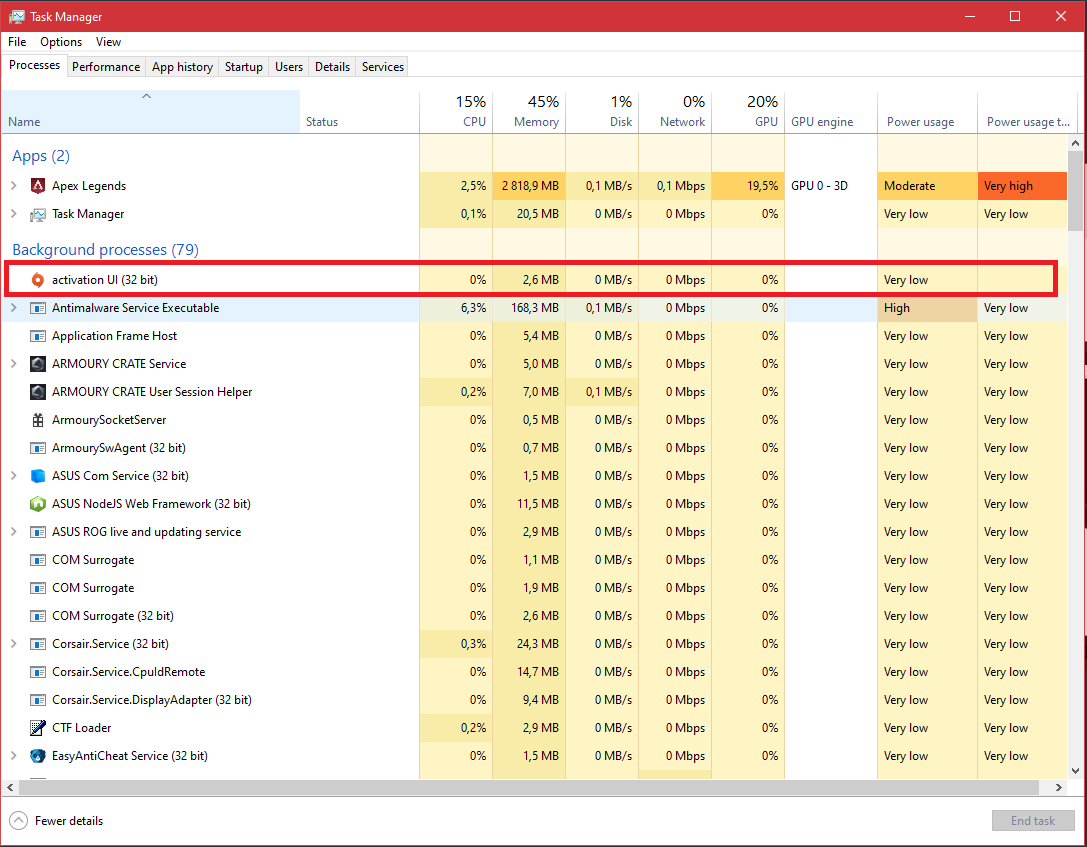
To check whether the origin client is updating or not, follow these steps-
- Open the Task Manager by clicking Ctrl+alt+del simultaneously
- Look for the Origin application
- Check if the origin is taking all your internet bandwidth in the network column. If it is taking bandwidth then origin client is updating. Give it some time to update it and after some time launch origin again and check if the issue is resolved
Method 6: Perform A Clean Boot
This error could be fixed by performing a clean boot. For doing this, follow these steps-
- Press Windows key and R to open the Run dialog box
- Type msconfig and press Enter
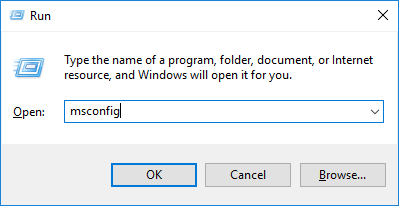
- Go to the Services tab and tick mark all the Hide all Microsoft services box and click Disable all
- Now open Task Manager
- Navigate to the startup tab on the Task Manager. Select the item for each startup and click Disable
- Go back to the System Configuration and click Ok. Your pc will restart
Method 7: Reinstall Origin Client
Reinstall origin client to fix the issue. For doing this, follow these steps-
- Go to Control Panel
- Click on Uninstall a program and uninstall origin
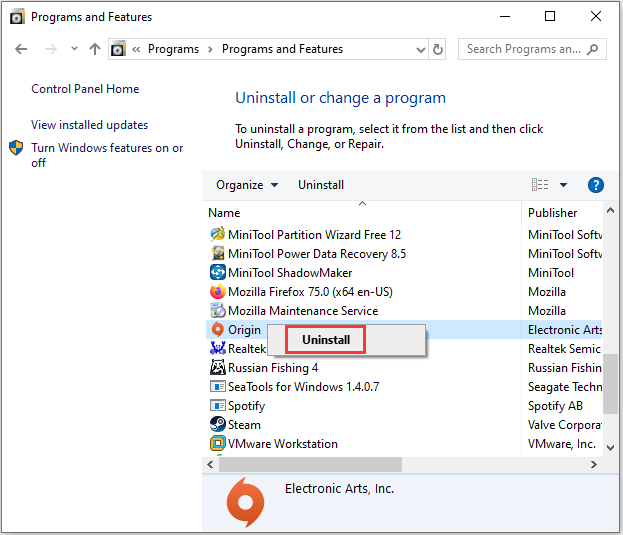
- Navigate to Program files and AppData and clear all the remaining of the origin (Do not delete folders with games or else you will have to redownload them)
- Reboot your computer
- Now go to the official EA Origin website and download the latest version of Origin client
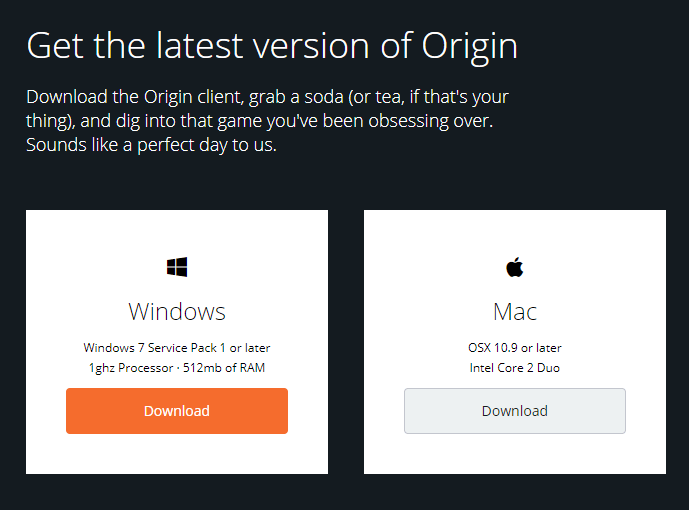
Check whether this issue is resolved or not
Method 8: Add Origin As An Exclusion
To solve the issue, add origin as an exclusion in the antivirus. This solution depends on the type of antivirus, most of them follow the same steps. Open the antivirus and go to the settings option. See if there is any option “Exception” or “Add to exclusions“. If you open it, it will ask you to provide the path to the binary or ask for a name. In both cases you can provide the path of origin client or its name. By doing this, whenever your antivirus does scanning, it won’t suspect origin for anything. This could help in fixing the origin not loading error.


Method 9: Disable All Origin In-Game Overlays
To disable the in-game overlays, follow the steps mentioned below-
- Launch origin in your pc
- Navigate to the Application Settings from the top menu
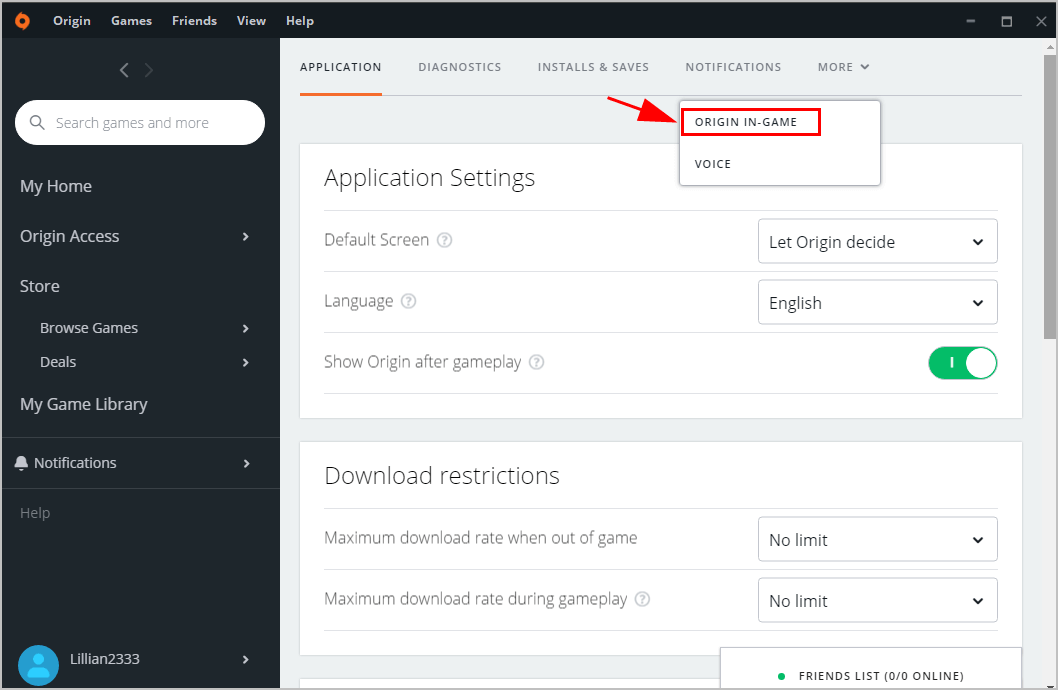
- Click on it and you’ll find a list of all in-game overlays for the origin. Disable all of the in-game overlays

- After all of the in-game overlays are disabled, restart your Origin App and check if the issue is resolved
Method 10: Check For Windows Updates
If you have tried all the other ways and origin not loading issue still exists then try to update your Windows. To do this, follow these steps-
- From the bottom-right corner of the screen open the notification center
- Expand the section and click on All settings
- Open the Updates and Security tab
- Click on Check for updates
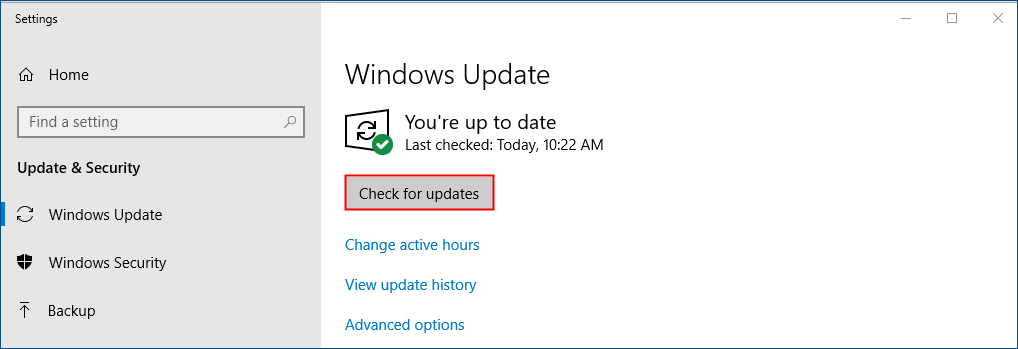
- If the updates are available, update the Windows
Final Verdict

These were some working methods to fix the “Origin not loading” issue. Try these fixes accordingly to get rid of this issue. I hope I helped you in fixing the issue.
For any queries, comment below in the comments section. Let us know which method worked out for you.
Cheers!