A lot of you may have run into the message: “Windows Update cannot currently check for updates, because the service is not running. You may need to restart your computer”. This usually occurred when users tried to update to a later version of Windows OS. This is rather a serious problem as you won’t be able to update your OS to the latest version, thereby getting stuck with an older OS, which is more prone to hacking.
There are two key methods available to fix the Windows Update service not running, we’ll discuss them in the section below.
Contents
How to Fix Windows Update Service Not Running?
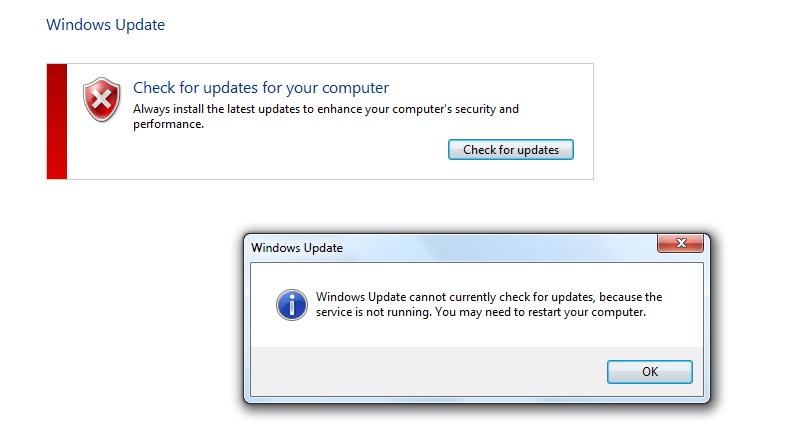
Before we get into the ways you can fix this issue, we highly suggest you heed Windows’ advice and “restart your computer”. Windows has tons of services running in the background such as Active Directory Services, Prefetch and Superfetch Services, Background Intelligent Transfer Services (BITS), and the infamous Windows Update service. It’s simply quite possible that your Windows Update service didn’t start correctly upon booting your computer. Hence, you should just try to restart your computer first before you begin to experiment with the methods listed below.
Method #1: Delete Software Distribution Folder
The Software Distribution Folder is a Windows Directory that is an essential component for Windows Update. It temporarily stores all the files required to install new updates. If you’re having problems with Windows update, usually deleting this folder does the trick. Also, don’t worry, Windows will automatically re-download all the files.
In some cases, the temporary files within the folder may be corrupted or broken, and that may be the reason why you’re facing the “update service is not running” message. Before you empty the folder, you’ll want to completely stop Windows Update Service so that it isn’t accessing any of the folder’s contents while we fix this issue. Just follow the simple instructions below:
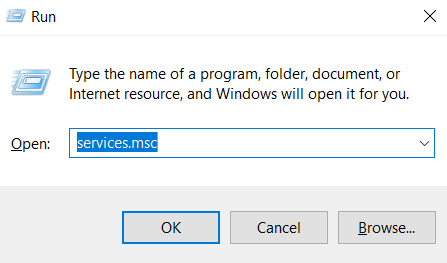
- Hold down the Windows Key + R key to open the Run dialog box. Enter the command, “services.msc” and hit Enter key.
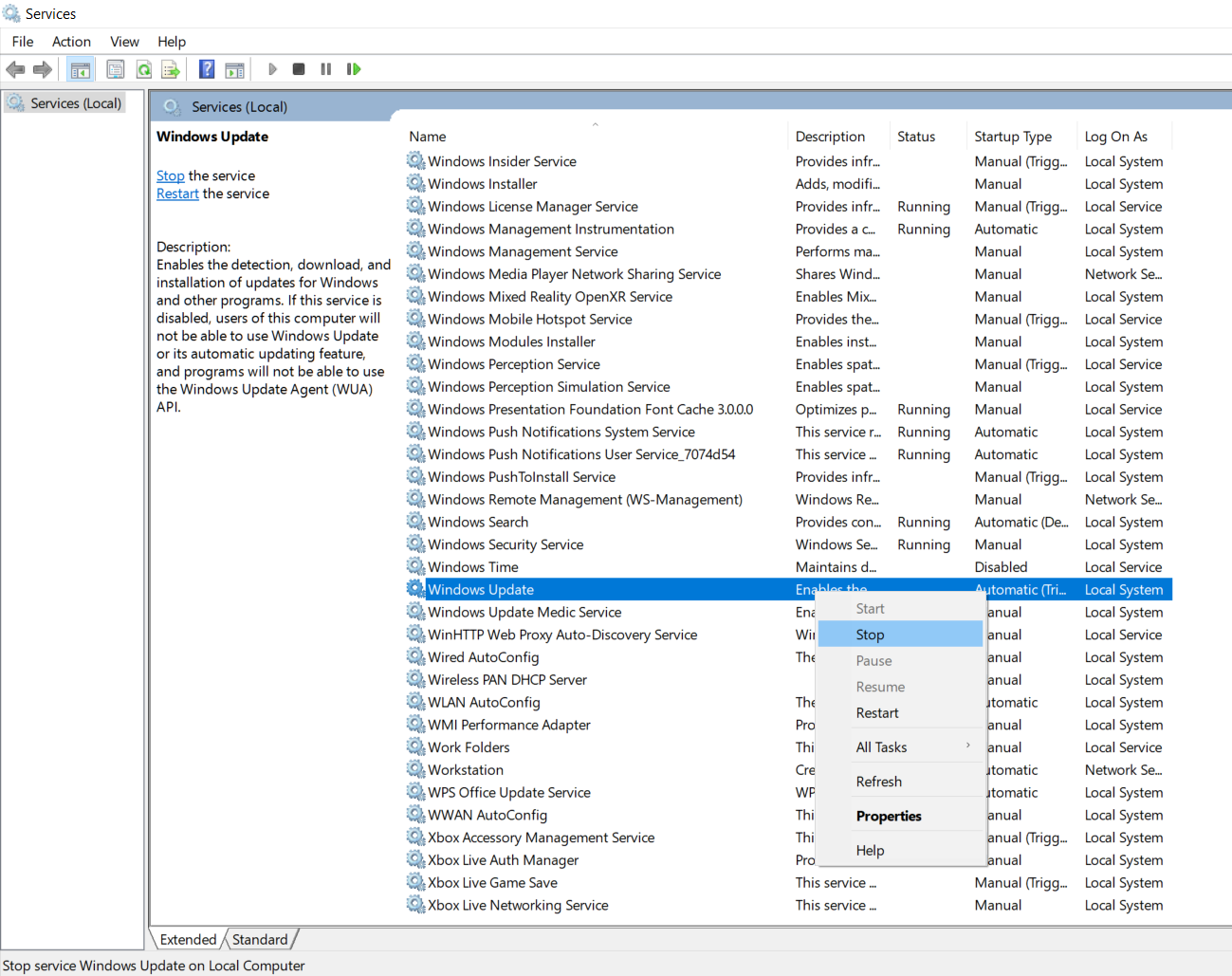
- Here, you’ll see all of Windows Services running. Scroll down until your see Windows Update. Right-click it and select “Stop”. After doing this you will have successfully stopped Windows Update service. The next step is to empty the contents of the Software Distribution folder.
- Open up Windows File Explorer and select the Local Disk (C:) icon. Next, navigate through the folders “C:\Windows\SoftwareDistribution”.
- Right-click the SoftwareDistribution folder and select Delete.

- After deleting, the folder you can restart Windows Update Service by going into the Services program, right-clicking on Windows Update and this time selecting “Start”.

The only downside of this method is that you’ll lose your Windows Update data history if that was important to you. Moreover, you shouldn’t regularly clear out this folder, only do so when you’re facing issues such as this. But on the upside you will no longer get the “Windows Update Service Not Running” error message while trying to update to a newer version of Windows OS.
Method #2: Reset Windows Update Components Through Command Prompt
This method will completely reset the Windows Update client settings. It’s a proven working method to fix your Windows Update service issues on Windows XP, Vista, 7, 8, and 10. Note, this process is a little lengthy and requires you to use Command Prompt. You will be resetting and configuring the registry keys and files related to Windows update, hence we recommend you create a backup or restore point for your computer before you begin.
Step 1: Search for “command prompt” on your Start menu, right-click, and select “Run as administrator” to open Command Prompt.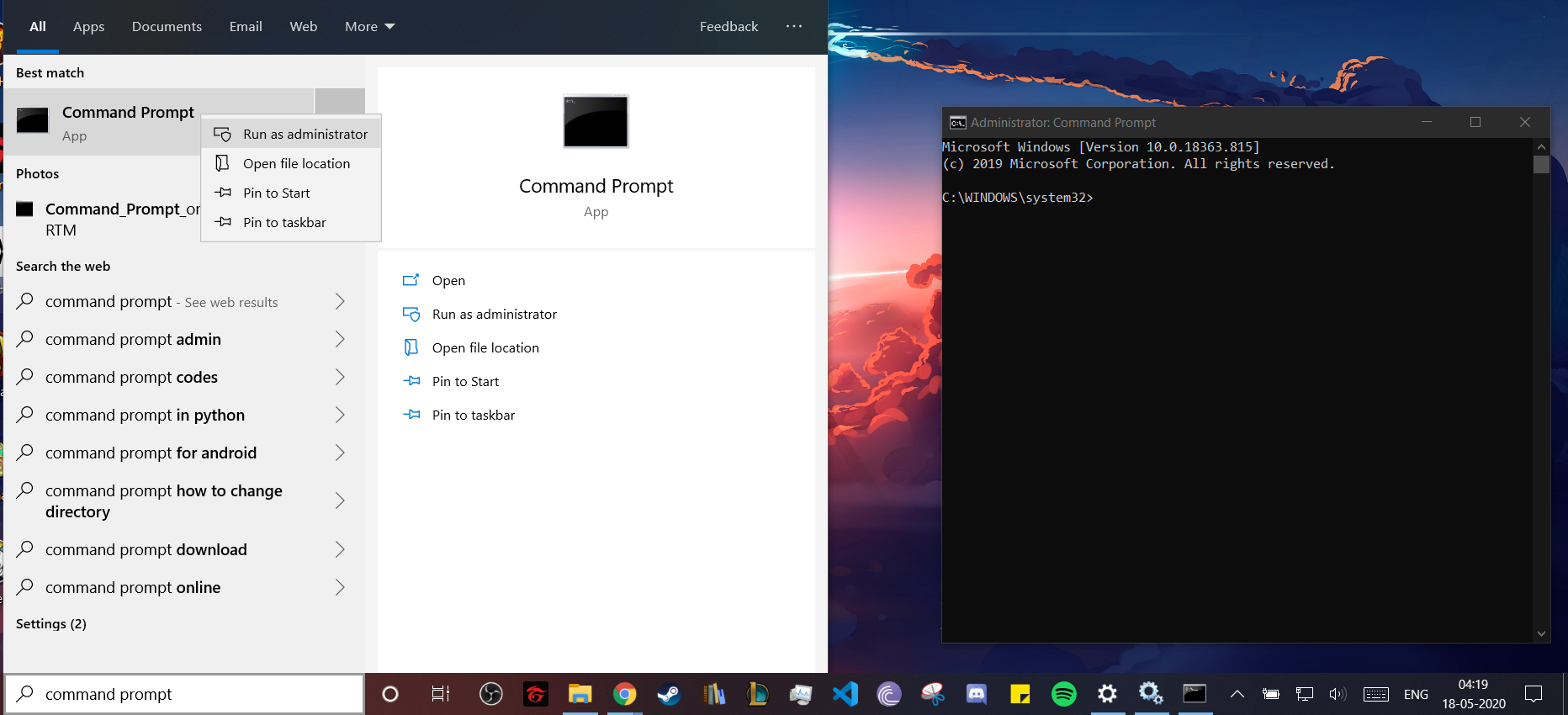
Step 2: Next, stop the BITS service and Windows Update service by entering the following commands one by one:
-
net stop bits
-
net stop wuauserv
Step 3: Now you’ll have to delete the qmgr*.dat files by entering the following command
-
Del "%ALLUSERSPROFILE%\Application Data\Microsoft\Network\Downloader\qmgr*.dat"
Step 4: Now access your Windows sytem32 directory by entering the following command:
-
cd /d %windir%\system32
Step 5: This next step may seem a little tedious but it has to be done. You’ll have to re-register each and every one of the BITS files and Windows update files manually. To do this enter the following commands into command prompt and press Enter after you type each command.
-
regsvr32.exe atl.dll
-
regsvr32.exe urlmon.dll
-
regsvr32.exe mshtml.dll
-
regsvr32.exe shdocvw.dll
-
regsvr32.exe browseui.dll
-
regsvr32.exe jscript.dll
-
regsvr32.exe vbscript.dll
-
regsvr32.exe scrrun.dll
-
regsvr32.exe msxml.dll
-
regsvr32.exe msxml3.dll
-
regsvr32.exe msxml6.dll
-
regsvr32.exe actxprxy.dll
-
regsvr32.exe softpub.dll
-
regsvr32.exe wintrust.dll
-
regsvr32.exe dssenh.dll
-
regsvr32.exe rsaenh.dll
-
regsvr32.exe gpkcsp.dll
-
regsvr32.exe sccbase.dll
-
regsvr32.exe slbcsp.dll
-
regsvr32.exe cryptdlg.dll
-
regsvr32.exe oleaut32.dll
-
regsvr32.exe ole32.dll
-
regsvr32.exe shell32.dll
-
regsvr32.exe initpki.dll
-
regsvr32.exe wuapi.dll
-
regsvr32.exe wuaueng.dll
-
regsvr32.exe wuaueng1.dll
-
regsvr32.exe wucltui.dll
-
regsvr32.exe wups.dll
-
regsvr32.exe wups2.dll
-
regsvr32.exe wuweb.dll
-
regsvr32.exe qmgr.dll
-
regsvr32.exe qmgrprxy.dll
-
regsvr32.exe wucltux.dll
-
regsvr32.exe muweb.dll
-
regsvr32.exe wuwebv.dll
Step 6: Now, reset your computer’s network configuration to ensure proper internet connectivity when using the Windows Update service. You can do so by entering the following command:
-
netsh winsock reset
Step 7: Lastly, restart the BITS and Windows Update service. To do this, enter the following commands and press Enter after each one.
-
net start bits
-
net start wuauserv
That’s it, you have successfully reset your Windows Update Service in its entirety. This should solve your Windows Update Service not running issue as well as any other update errors on Windows 7, 8, and 10.
Final Words:
Explained above two working and reliable methods to getting your Windows Update Service back up and running again. A lot of websites will recommend Microsoft Fix It Tool, but that software is outdated and doesn’t seem to diagnose and fix Windows Update issues. Unfortunately, you’ll have to go through manual methods, but it’ll be worth it at the end (a small price to pay for update salvation).
If you have any questions please leave it in the comments below. Moreover, if you want to learn more about certain terminology used in the article such as BITS, Winsock, etc, you should take a look at Microsoft’s official documentation.